
This article explains how to use the Users tab to manage users and their access to File Storage in the roommaster Web app.
Access to the Users tab
- The Users tab is available for users with upper permissions and manager roles
- Only managers can view and manage users
Users displayed
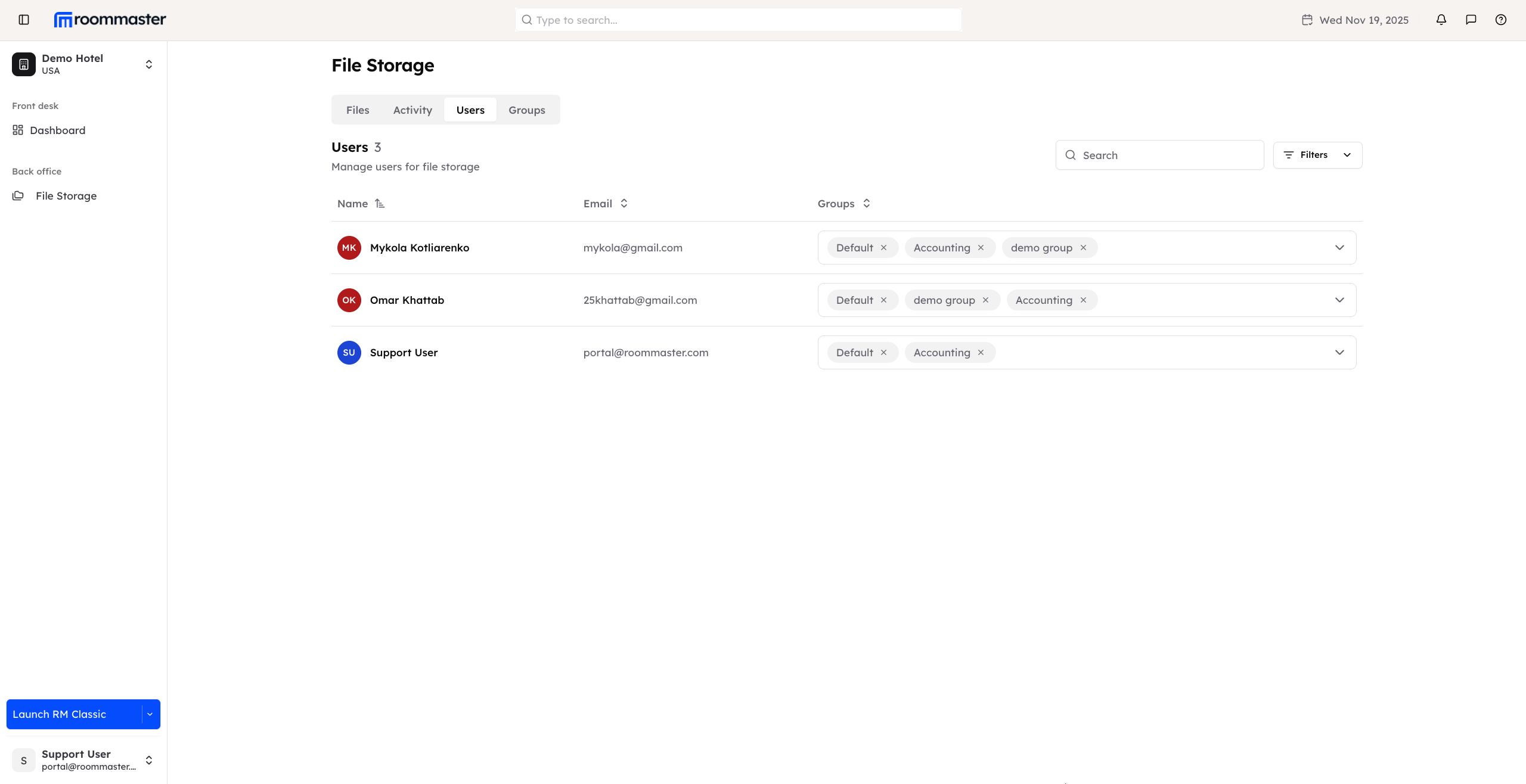
- The Users tab lists all users who have SSO accounts and the permission to access File Storage
- Users without SSO accounts cannot access File Storage, even if they exist on roommaster Cloud (RMC)
User details displayed
For each user, the following information is shown:
- Name
- Groups they belong to
Searching and filtering users
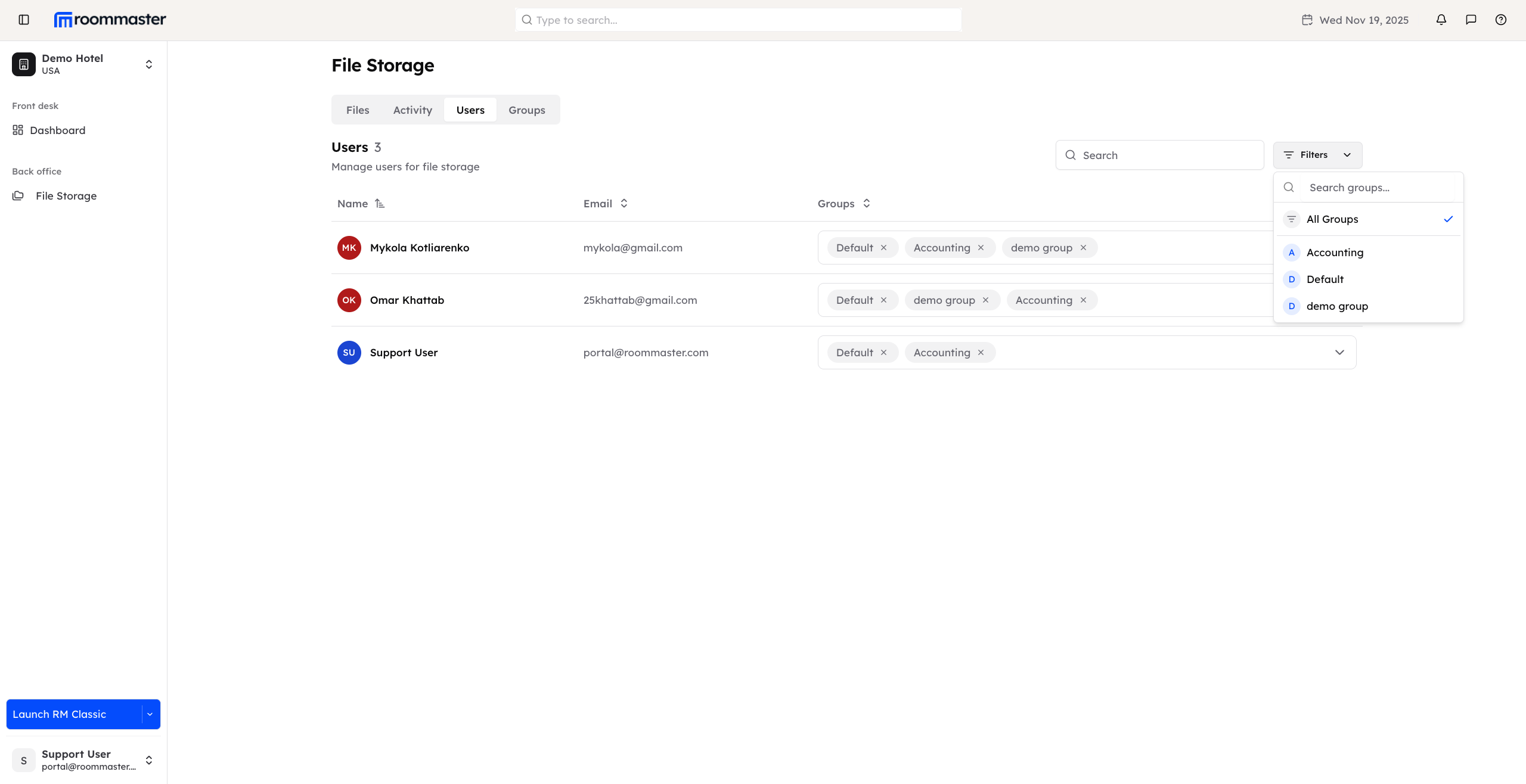
- A search bar allows you to search for specific users by name or email
- Filters allow you to display users belonging to a specific group
Managing user groups
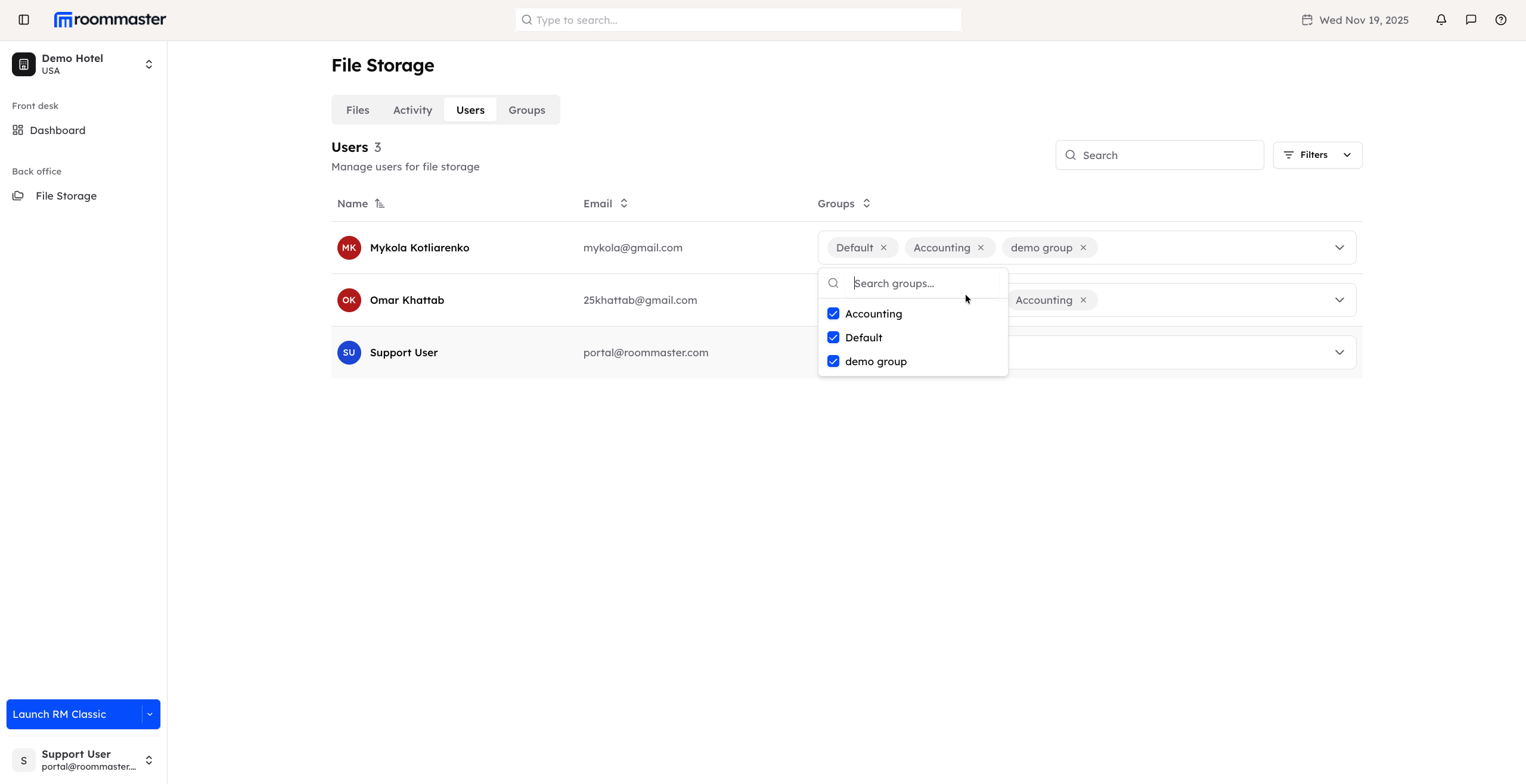
From the Users tab, you can add or remove users from groups:
- Groups drop-down: Click to add users to groups
- Removing a user from a group: Click the X on a group chip to remove the user from that group
- Users removed from a group lose access to files shared within that group
- Adding a user to a group: Grants the user access to the files shared with that group
Default group rules
- All users with File Storage access are automatically added to the default group
- Users cannot be removed from the default group
- The default group ensures that all users have baseline access to shared files
Notes
- The Users tab allows managers to efficiently control user access and file sharing within groups
- Proper group management ensures that users only have access to the files they are authorized to view
Comments
0 comments
Article is closed for comments.